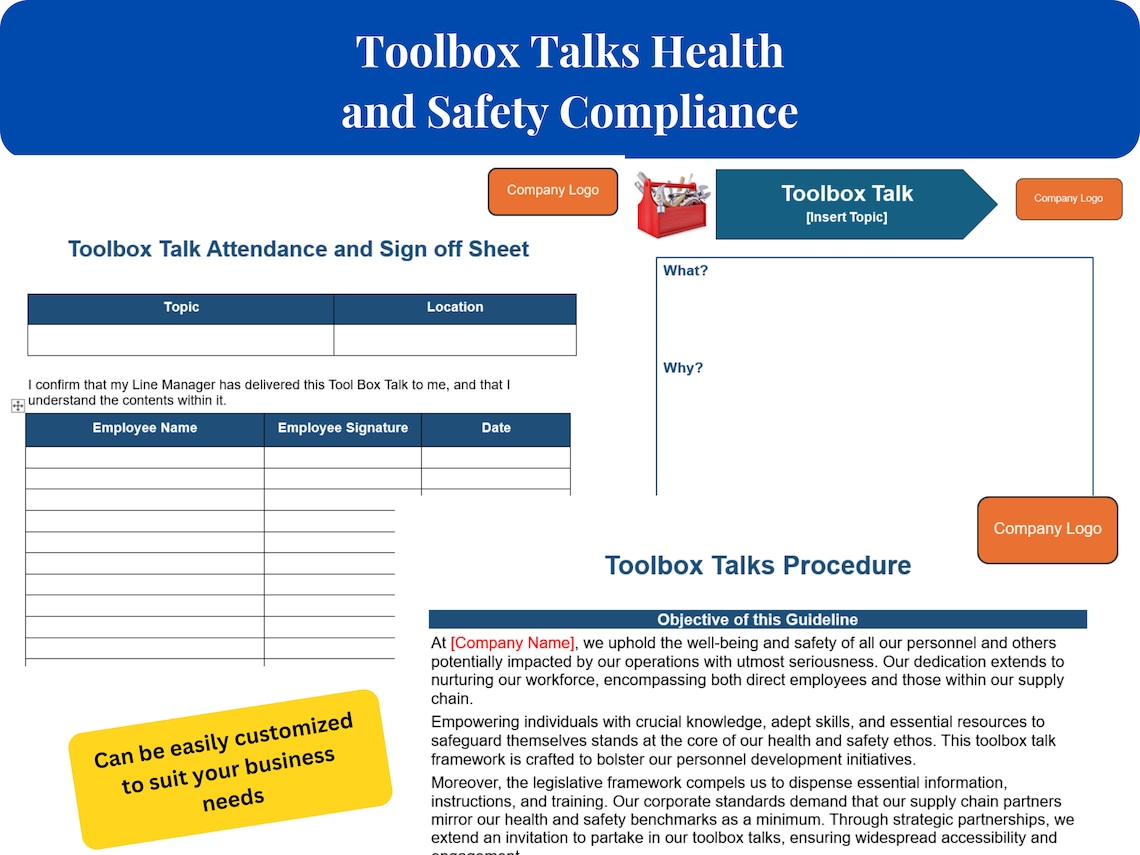
Safety doesn’t start with policy—it starts with conversation. And in high-risk environments like construction, manufacturing, or utilities, that conversation happens most reliably during toolbox talks. Yet too many teams still scramble to create these last-minute, resulting in inconsistent messaging, missed hazards, and weak documentation. The solution? A reliable toolbox talk template in Word—customizable, compliant, and ready to use.
Word is still the go-to for most safety managers because it’s accessible, editable, and integrates seamlessly into existing workflows. A well-designed toolbox talk template saves time, ensures consistency, and strengthens accountability across job sites. This guide delivers not just a concept, but a practical resource: how to use, adapt, and deploy a toolbox talk template in Microsoft Word format effectively.
Why a Word-Based Toolbox Talk Template Works Best
Many platforms promise digital safety tools, but in real-world environments—especially remote or low-connectivity sites—simplicity wins. Word remains the universal standard for a reason:
- Universal access: Nearly every office and field supervisor has Microsoft Word or a compatible reader.
- Offline usability: No app login or internet needed—critical on active job sites.
- Easy customization: Modify headers, logos, and sections without coding.
- Print-ready: Distribute hard copies for sign-in sheets or wall posting.
- Version control: Track changes across teams and update centrally.
A Word template isn’t outdated—it’s pragmatic. When safety communication must be fast, clear, and documented, a structured .docx file often outperforms flashy apps.
Key Elements of an Effective Toolbox Talk Template
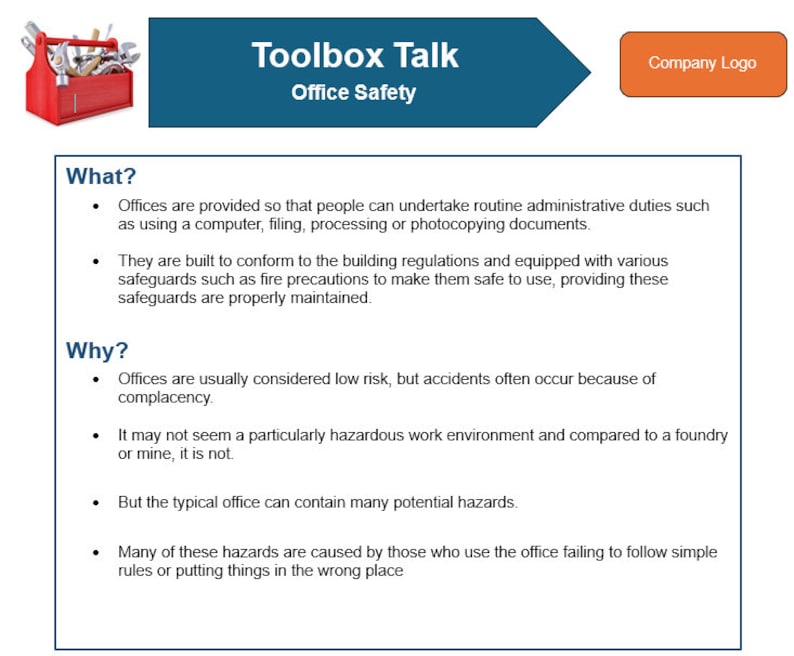
A generic Word document won’t cut it. To drive engagement and compliance, your toolbox talk template must include specific, actionable components. Here’s what every high-performing template should contain:
#### 1. Header with Project & Company Info Include space for: - Company name and logo - Project name and location - Date and time of meeting - Supervisor or safety officer leading
This creates accountability and ties the talk to a specific context.
#### 2. Topic Selection Field Pre-list common topics (e.g., “Fall Protection,” “Electrical Safety”) or allow free entry. This ensures focus and helps track recurring themes.
#### 3. Hazard Identification Section A structured area to list: - Specific hazards present on site - Potential consequences (injury, downtime, fines) - Visual cues (e.g., “Wet floor near east stairwell”)
This shifts the talk from theory to real-time risk.
#### 4. Safe Work Practices Outline correct procedures, PPE requirements, and controls. Use bullet points for clarity and quick reading.
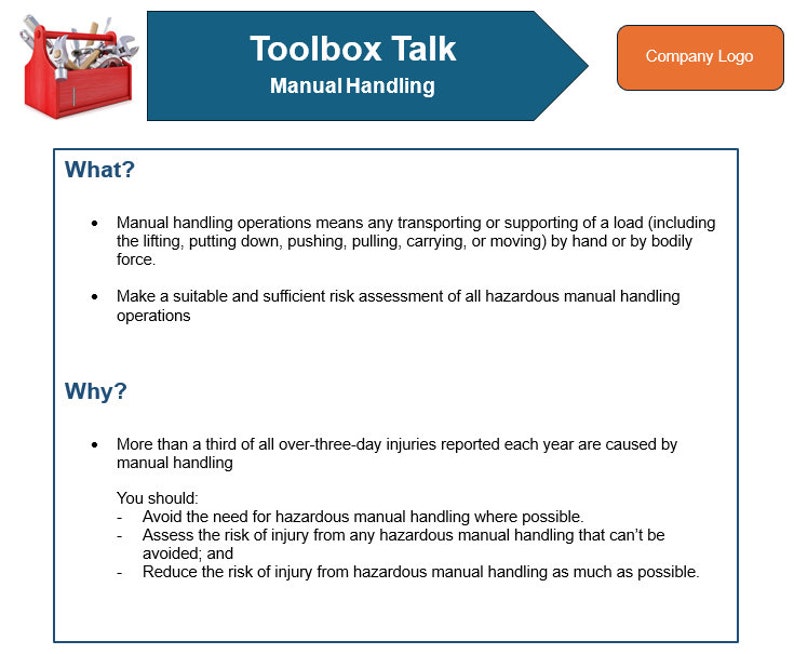
#### 5. Employee Sign-Off Sheet A table listing: - Attendee names - Signatures or initials - Printed names
This proves participation and supports OSHA compliance during audits.
#### 6. Notes & Action Items A final space for: - Follow-up tasks - Equipment checks - Supervisor remarks
This turns discussion into action.
Without these components, a toolbox talk becomes a formality. With them, it becomes a functional safety tool.
Common Mistakes That Undermine Toolbox Talks
Even with a solid Word template, poor execution can render the effort useless. Avoid these frequent pitfalls:
- Repeating the same topic without context: Talking about “ladder safety” every Monday loses impact. Tailor it: “Ladder use on scaffolding near Building C—what changed since last week?”
- Reading verbatim from the template: Engagement drops when talks feel scripted. Use the template as a guide, not a script.
- Skipping sign-offs: No signature = no proof. Always collect attendance.
- Ignoring site-specific risks: A boilerplate talk on PPE ignores whether workers actually have access to the right gear today.
- Holding talks too early or too late: Right after shift start, focus is low. Right before break, people are distracted. Aim for 15–30 minutes in.
A template helps prevent inconsistency—but it can’t fix disengagement. The supervisor’s delivery matters just as much as the content.
Real-World Use Case: Retrofitting an Old Template
A mid-sized electrical contracting firm was using a basic, unstructured Word doc for toolbox talks. Attendance was spotty, content varied wildly, and OSHA flagged their records during an audit.
They redesigned their template with these changes: - Added a dropdown for standard topics (using Word’s content controls) - Inserted a photo placeholder for site-specific hazard images - Created a two-column sign-in table to save paper - Included a “Last Week’s Action Follow-Up” section
Result? Meetings became shorter but more targeted. Compliance improved, and near-miss reporting rose by 40% in three months—proof that better structure leads to better safety culture.
5 Top Toolbox Talk Templates in Word Format
You don’t need to build from scratch. Here are five reliable, ready-to-use Word-based templates—free or low-cost—with pros and cons:
| Template Name | Source | Key Features | Pros | Cons |
|---|---|---|---|---|
| OSHA-Affiliated Construction Template | SafetyNow | Pre-filled OSHA topics, signature grid | Compliant, easy to adapt | Slightly outdated layout |
| HSE UK Toolbox Talk Template | UK Health & Safety Executive | Risk assessment integration | Internationally recognized | Metric units only |
| SiteSafe Simple Talk Template | SiteSafe (NZ) | Visual hazard icons, mobile-friendly Word format | Clean design, intuitive | Limited customization |
| Customizable Daily Safety Meeting Template | Template.net | 10 topic variants, company branding space | Highly flexible | Requires Pro membership for full access |
| Free Construction Safety Talk Template | SafetyCulture | Editable fields, action item tracker | Modern, cloud-syncable version available | Basic Word version lacks formatting |
All are downloadable as .doc or .docx files. For most U.S.-based teams, the OSHA-aligned or SafetyCulture options offer the best starting point.
How to Customize Your Word Template for Maximum Impact
A generic template only gets you halfway. Tailoring is essential. Here’s how to refine it:
- Insert Your Company Branding
- Add logo, colors (via Word styles), and safety motto at the top. This reinforces ownership.
- Use Built-in Word Features
- - Content Controls: Insert dropdowns for topics or weather conditions
- - AutoText: Save common hazard descriptions for reuse
- - Styles: Apply Heading 1, 2, etc., for consistency and accessibility
- Lock Non-Essential Areas
- Protect the structure (via “Restrict Editing”) so only designated fields are editable—prevents accidental formatting errors.
- Create Topic-Specific Versions
- Duplicate the master file for high-risk areas: “Hot Work,” “Confined Space,” “Night Shift.” Pre-fill relevant PPE and procedures.
- Save as a Template (.dotx)
- Once finalized, save as a Word Template file. This lets users generate new talks without overwriting the original.
A well-tuned template becomes part of the job site rhythm—not a compliance chore.
Integrating the Template Into Daily Workflow
Having the file isn’t enough. It must be used consistently. Here’s how to embed it:
- Schedule in Advance: Assign topics weekly. Distribute the blank template Monday morning.
- Pre-Fill When Possible: Safety officers can draft sections based on site inspections.
- Print or Tablet Use: Offer both options. Some supervisors prefer marking up paper; others use tablets with styluses.
- File System Setup: Create a shared folder:
[Project]/Safety/Toolbox Talks/YYYY-MM-DD_Topic.docx - Monthly Audit: Review 3–5 random talks for completeness, signatures, and relevance.
Teams that treat the template as a living document—not a form—see better safety outcomes.
The Bottom Line: Simplicity Wins
A toolbox talk template in Word isn’t flashy. It won’t send push notifications or generate AI summaries. But it works. It’s fast, universal, and forces clarity. In an industry where minutes matter and risks are real, that reliability is invaluable.
Don’t overcomplicate safety communication. Download a proven Word template, customize it for your operations, and use it consistently. A five-minute talk, properly documented, can prevent a lifetime of regret.
Frequently Asked Questions
Where can I get a free toolbox talk template in Word? Reputable sources include OSHA’s website, SafetyCulture (iAuditor), and the UK HSE. Many offer free downloadable .docx files.
Can I edit a toolbox talk template on a mobile device? Yes—Word Mobile or apps like Microsoft Word or Google Docs (with OfficeSuite) support editing .docx files on phones and tablets.
How often should toolbox talks be held? At minimum, weekly. High-risk tasks or new crews warrant daily talks.
Do toolbox talks need employee signatures? Yes. Signatures verify attendance and understanding, which is crucial for compliance and legal protection.
Should toolbox talks be the same across all job sites? No. Customize for site-specific hazards, crew roles, and current conditions.
Can I use a toolbox talk template for non-construction industries? Absolutely. Manufacturing, utilities, maintenance, and warehousing teams all benefit from structured safety briefings.
What’s the ideal length for a toolbox talk? 5 to 15 minutes. Focus on one clear topic with actionable takeaways.
FAQ
What should you look for in Toolbox Talk Template Word: Free Download & Best Practices? Focus on relevance, practical value, and how well the solution matches real user intent.
Is Toolbox Talk Template Word: Free Download & Best Practices suitable for beginners? That depends on the workflow, but a clear step-by-step approach usually makes it easier to start.
How do you compare options around Toolbox Talk Template Word: Free Download & Best Practices? Compare features, trust signals, limitations, pricing, and ease of implementation.
What mistakes should you avoid? Avoid generic choices, weak validation, and decisions based only on marketing claims.
What is the next best step? Shortlist the most relevant options, validate them quickly, and refine from real-world results.